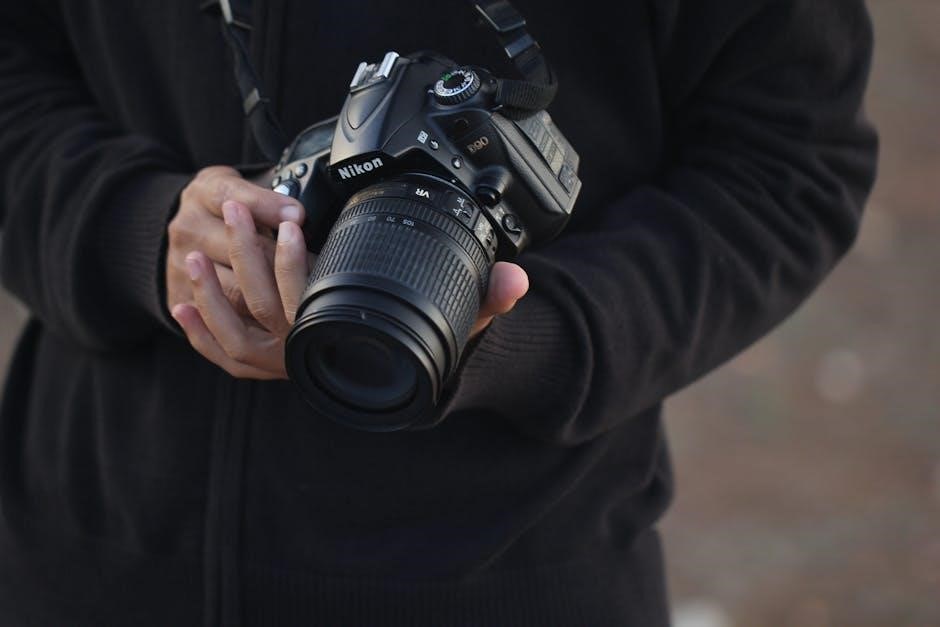
Congratulations! This manual guides you through the Nikon D3300, ensuring a successful and enjoyable photographic experience with its features.
What’s in the Box?
Upon opening your Nikon D3300 package, you’ll find the D3300 camera body itself, a Nikkor lens (typically an 18-55mm kit lens), a battery, and a battery charger.
Additionally, the box includes a USB cable for data transfer, a strap for comfortable carrying, and essential documentation like the reference manual and warranty information;
Key Features and Benefits
The Nikon D3300 boasts a 24.2-megapixel DX-format CMOS sensor, delivering exceptional image quality and detail.
It features 11-point autofocus for sharp images, and Full HD 1080p video recording capabilities.
Its lightweight design and user-friendly interface make it ideal for beginners, while offering enough control for enthusiasts.

Understanding the Camera Body
Familiarize yourself with the D3300’s layout; understanding button placement and ports is crucial for efficient operation and comfortable handling.
Front and Rear Views Explained
The front showcases the lens mount, autofocus-assist illuminator, and function button. Rear views reveal the LCD screen, control dial, and various buttons for menu navigation and image playback. Locate the microphone, speaker, and connectivity ports. Understanding these elements facilitates seamless camera operation and exploration of its capabilities.
Top Panel Controls and Functions
The top panel houses the power switch, mode dial (Auto, Scene, Manual), and shutter button. Explore the control dial for adjusting settings like ISO and white balance. Familiarize yourself with the video record button and the built-in flash control. Mastering these controls unlocks creative photographic possibilities.
Setting Up Your D3300
Begin by inserting a compatible battery and memory card. Then, power on the camera and follow the on-screen prompts for initial setup and personalization.
Inserting the Battery and Memory Card
Locate the battery compartment on the camera’s bottom. Release the latch and insert the EN-EL14a battery, ensuring correct orientation. Similarly, open the card slot and insert a compatible SD card, label-side up. Confirm both are securely locked before powering on the D3300 for initial use.
Initial Camera Setup (Language, Date/Time)
Power on the D3300 and follow the on-screen prompts. Select your preferred language from the list provided. Accurately set the date and time; this information is crucial for correct image timestamps. Confirm each selection to proceed, personalizing your camera for optimal functionality and future use.

Shooting Modes Explained
Explore diverse modes! Auto simplifies shooting, while manual offers full control. Scene modes optimize settings for portraits, landscapes, sports, and various scenarios.
Auto Mode vs. Manual Modes
Auto mode simplifies photography, letting the camera handle settings like aperture, shutter speed, and ISO. It’s ideal for beginners or quick snapshots. Manual mode grants complete creative control, allowing you to adjust every setting for precise results. Mastering manual mode unlocks your photographic potential, but requires understanding exposure principles.
Scene Modes: Portrait, Landscape, Sports, etc.
Scene modes optimize camera settings for specific situations. Portrait mode blurs backgrounds, emphasizing subjects. Landscape mode maximizes depth of field for sharp scenery. Sports mode uses faster shutter speeds to freeze action. Explore modes like Night Portrait, Macro, and more for tailored results, simplifying complex settings.
Focusing and Exposure
Master focus and exposure for sharp, well-lit images. Utilize autofocus modes and exposure compensation to creatively control your photographs effectively.
Autofocus Modes: Single, Continuous, Auto-area
Single-area AF is ideal for stationary subjects, locking focus upon activation. Continuous-area AF tracks moving subjects, maintaining focus during action. Auto-area AF lets the camera automatically select focus points, simplifying operation for general photography, though offering less control.
Exposure Compensation and Metering Modes
Exposure compensation adjusts brightness, overriding the camera’s automatic settings. Use it for backlit scenes or strong highlights. Metering modes (Matrix, Center-weighted, Spot) determine how the camera measures light. Matrix is general-purpose, Center-weighted prioritizes the center, and Spot measures a small area.
Understanding the Menu System
Navigate the D3300’s menu using the directional pad and OK button to customize settings. Explore options for image quality, autofocus, and more!
Navigating the Menu
Accessing the menu is simple: press the menu button on the camera’s back panel. Use the multi-selector to move between menu tabs – Setup, Shooting, Custom Settings, etc. – and the OK button to select options. The ‘?’ button provides helpful on-screen explanations for each setting, aiding understanding and customization of your Nikon D3300.
Customizing Camera Settings
Personalize your D3300! Within the Custom Settings menu, adjust settings like autofocus behavior, metering, image quality, and button assignments. Tailor the camera to your shooting style for optimal control. Save custom settings as presets for quick recall, streamlining your workflow and enhancing your photographic experience.

Working with Lenses
Explore lens options! The Nikon D3300 supports various F-mount lenses, offering diverse perspectives and capabilities for your photographic pursuits.
Lens Compatibility and Types
Nikon F-mount lenses are fully compatible with the D3300, including AF-S, AF-P, and older AF lenses (with limited functionality). Zoom lenses offer versatility, while prime lenses excel in low light. Consider DX-format lenses designed specifically for the D3300’s sensor size, or FX lenses for a wider field of view.
Attaching and Detaching Lenses
Align the lens mounting index with the camera body mark, then gently insert and rotate clockwise until it clicks. To detach, press the lens release button and rotate counterclockwise. Always hold the camera body steady during these actions to prevent damage. Protect contacts from dust and fingerprints.
Image Quality and Settings
Adjust image size and quality for desired detail and file size; explore white balance options to achieve accurate colors under various lighting conditions.
Image Size and Quality Options
The D3300 offers several image size choices, from large for detailed prints to small for web use. Quality settings (Fine, Normal, Basic) affect compression; Fine provides the best detail but larger files. RAW format captures maximum data for editing flexibility, while JPEG is convenient for immediate use.
White Balance Settings
White balance adjusts colors for accurate representation under different lighting conditions; Options include Auto, Daylight, Cloudy, Fluorescent, and Incandescent. Custom settings allow precise adjustments using a white or gray card. Correct white balance ensures natural-looking colors in your photographs, avoiding unwanted color casts.
Using the Built-in Flash
The D3300’s flash offers Auto, Fill-Flash, and Red-Eye Reduction modes. Flash compensation adjusts brightness, ensuring properly exposed and well-lit images in various scenarios.
Flash Modes: Auto, Fill-Flash, Red-Eye Reduction
Auto mode lets the camera decide when flash is needed, ideal for general shooting. Fill-Flash forces the flash to fire, brightening shadows in bright daylight. Red-Eye Reduction emits pre-flashes to minimize red-eye effects, particularly useful in low-light portraits, improving image quality significantly.
Flash Compensation
Flash Compensation adjusts the flash output, allowing for brighter or darker flash photos. Values range from -3 to +3 EV. Positive values increase flash power, useful for backlit subjects, while negative values decrease it, preventing overexposure. Experiment to achieve desired lighting effects and optimal results.
Video Recording with the D3300
Capture moving moments! The D3300 records high-definition videos with selectable frame rates and audio options for creative storytelling.
Video Resolution and Frame Rates
Record in stunning detail! The Nikon D3300 supports Full HD 1920×1080 video recording at various frame rates, including 60p, 50p, 30p, 25p, and 24p. Choosing the right frame rate depends on your desired effect; higher rates create smoother motion, while lower rates offer a more cinematic look.
Audio Recording Options
Enhance your videos with sound! The D3300 features a built-in microphone for basic audio capture. For improved sound quality, connect an external microphone to the microphone jack. Adjust audio levels manually for optimal recording, avoiding clipping or excessively low volume during video capture.

Viewing and Deleting Images
Review your photos easily! Use playback mode to view captured images on the LCD screen, and delete unwanted files from the memory card.
Playback Mode and Display Options
Explore your images! Access playback mode by switching the camera dial. View single images, multi-image displays (4, 9, or 72 up), and utilize zoom for detailed inspection. Customize display options to show shooting data, histograms, or auto-rotate images for convenient viewing.
Deleting Images from the Memory Card
Manage your storage! In playback mode, select images and press the trashcan button to delete. Confirm deletion to permanently remove files. Use the “Delete All” option cautiously, as this action is irreversible. Regularly deleting unwanted images frees up space for new photos.
Connecting to a Computer
Transfer your memories! Use the provided USB cable to connect your D3300 to your computer for easy image transfer and camera control.
Using USB Connectivity
Connect and transfer! Ensure your D3300 is powered off before connecting the USB cable to the camera and computer; Select ‘Mass Storage’ mode on the camera to appear as a drive. Then, easily copy images. Alternatively, use Nikon’s software for organized transfers and potential editing features.
Transferring Images to Your Computer
Seamless transfer awaits! After connecting via USB, your D3300 appears as a drive. Drag and drop images to your computer, or utilize Nikon’s software for streamlined organization. Consider creating folders for each event. Back up regularly to prevent data loss and preserve precious memories!

Troubleshooting Common Issues
Don’t panic! Check battery and card insertion if the camera won’t power on. Consult the manual for error message solutions and further assistance.
Camera Not Turning On
First, verify the battery is fully charged and correctly inserted into the compartment. Next, ensure the memory card is properly seated; If problems persist, try a different, known-good battery. Consult the manual for detailed diagrams and troubleshooting steps; a reset might be necessary.
Error Messages and Solutions
Refer to your D3300’s manual for a comprehensive list of error codes. Common issues include card errors (replace/reformat), lens communication problems (re-attach lens), or internal camera errors. Restarting the camera often resolves temporary glitches; contact Nikon support for persistent, unexplained errors.
Cleaning and Maintenance
Regularly clean the camera body and lens with a soft cloth. Avoid liquids near openings, and professionally clean the sensor when needed.
Cleaning the Sensor
Dust accumulation on the sensor impacts image quality; professional cleaning is recommended. Use a blower to remove loose particles first. Avoid touching the sensor directly. Nikon offers sensor cleaning services, or you can utilize specialized kits with extreme caution, following all instructions carefully to prevent damage.
Caring for the Camera Body and Lens
Regularly wipe the camera body and lens with a soft, dry cloth to remove dust and fingerprints. Avoid harsh chemicals or abrasive cleaners. Store your D3300 in a dry, dust-free environment. Protect the lens with a cap when not in use, and consider a protective case for the body.

Advanced Features
Explore Picture Control for customized image looks and Creative Effects Mode to add artistic filters directly in-camera, enhancing your photographic vision.
Using Picture Control
Picture Control allows you to personalize the look of your images directly within the camera. Choose from Standard, Neutral, Vivid, Monochrome, and customizable Picture Control settings. Adjust sharpness, contrast, brightness, saturation, and hue to achieve your desired aesthetic, offering creative control without post-processing.
Creative Effects Mode
Creative Effects Mode offers nine artistic filters for unique images. Explore Night Vision, Pop Color, Selective Color, and others to instantly transform your photos. These effects are applied during capture, simplifying artistic expression and providing immediate visual results without needing editing software afterwards.
Warranty Information and Support
Nikon provides a standard warranty for the D3300, covering defects in materials and workmanship. Contact Nikon Support for details and assistance.
Nikon Warranty Details
Nikon’s limited warranty typically covers one year from the date of original purchase against manufacturing defects. This warranty includes parts and labor for repairs. It does not cover accidental damage, misuse, or unauthorized modifications. Proof of purchase is essential for warranty service; retain your receipt! Extended warranties may also be available.
Contacting Nikon Support
For assistance, visit Nikon’s official website for FAQs, downloadable resources, and troubleshooting guides. You can also reach Nikon support via phone or live chat. Their website provides regional contact numbers and email addresses. Expect potential wait times during peak hours. Online support is generally the fastest route to resolution.